How to Manage Multiple Social Media Accounts in One Place
Managing multiple social media accounts can quickly become overwhelming. You open Facebook to publish a post, switch to Instagram to upload another,…
Read article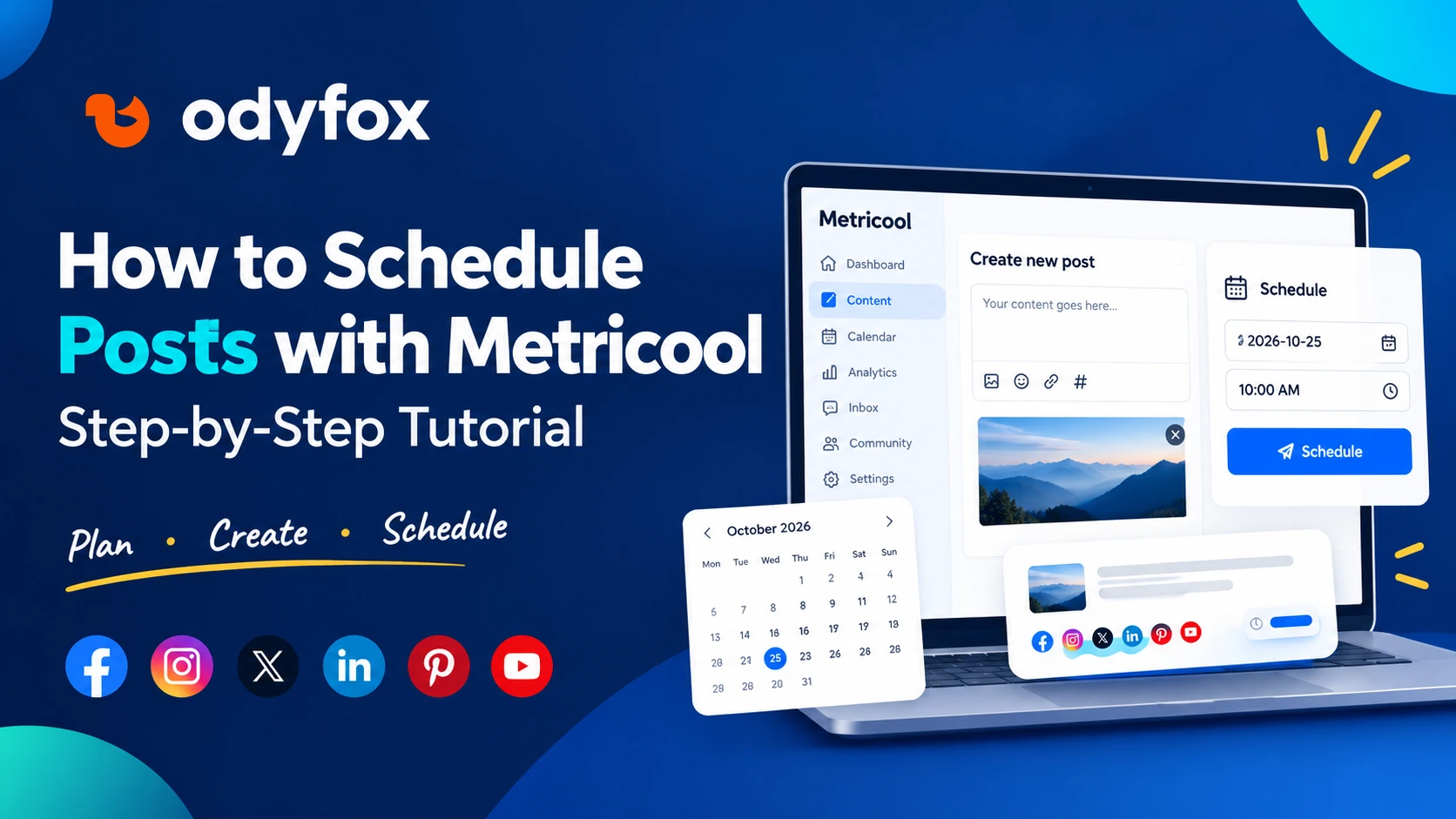
Scheduling social media content in advance can make your publishing routine easier to manage. Instead of creating every post at the last minute, you can prepare your content, choose publishing times, and organize upcoming posts in one calendar.
Metricool provides a Planning calendar and post composer that help you manage content for supported social networks. In this tutorial, you’ll learn how to schedule posts with Metricool, connect your social accounts, create a post, add media, choose a publishing time, and confirm that your content is scheduled correctly.
The available options can vary by social network, account type, and Metricool plan. Follow the steps below and check the options shown in your own account.
New to Metricool? Explore Metricool and create your account before following the tutorial.
First, sign in to Metricool and choose the Brand you want to manage.
A Brand is a workspace where you organize a business or client’s connected social media profiles. If you are setting up a new project, check whether your plan allows you to create another Brand.
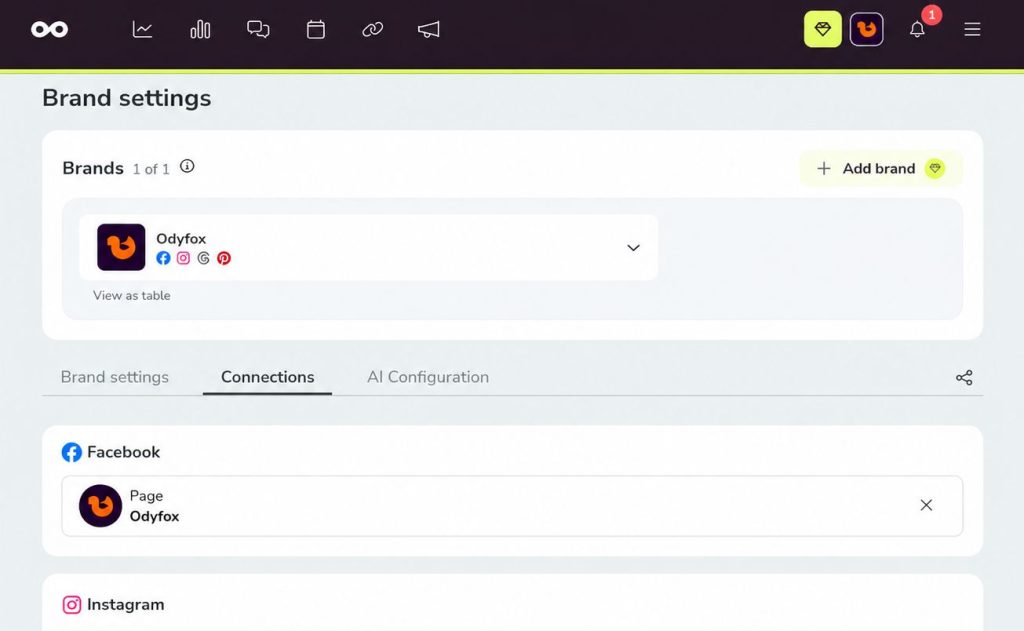
Next, open the Connections section from your account or Brand settings. The exact navigation may look slightly different depending on the interface you are using.
Choose the social network you want to connect. Follow thle authorization steps and approve the permissions requested by Metricool. You must have the necessary permissions on the social account to complete the connection.
You can connect supported platforms such as Facebook Pages, professional Instagram accounts, Threads, Pinterest, TikTok, LinkedIn, and others, subject to the relevant plan and platform requirements.
Remember that each Brand supports one account per platform. If you manage several Facebook Pages or multiple accounts on the same social network, you may need separate Brands, depending on your plan.
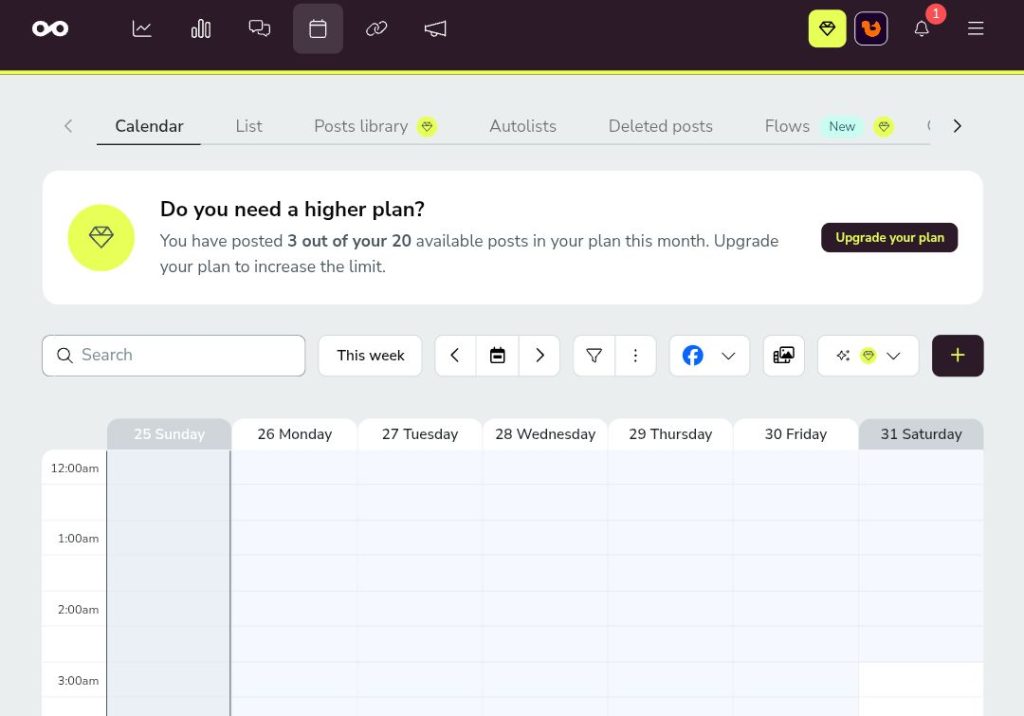
After connecting your accounts, open Planning from the top navigation.
This is where you can view the content calendar and organize scheduled posts. The calendar helps you see which dates already contain content and where you have room for new posts.
Before creating a post, check the time zone displayed near the calendar’s current time. Metricool uses the time zone from your account settings by default, but you can select the appropriate time zone for each Brand.
This is particularly important if you manage social media for an audience in another country. A time zone mismatch can cause a post to be scheduled several hours earlier or later than intended.
Click Create new post or select a suitable date and time slot directly in the calendar.
The post composer will open. Choose the social networks where you want the content to appear. The selected network icons will normally be highlighted.
You can prepare one post for multiple networks, but do not assume that every platform supports the same content formats or publishing options.
For example, image dimensions, video requirements, hashtags, mentions, links, and automatic publishing capabilities can differ between networks.
Choose the platforms that suit your content before moving to the next step.
Enter your caption in the post composer. Write a clear message that fits the audience and purpose of the post.
Before continuing, check spelling, links, mentions, and hashtags. If you are sharing a blog article, make sure the destination URL works correctly.
To add a photo or video, use the media attachment option in the composer and select the appropriate file or supported media source. The available options depend on your account and the selected social network.
Make sure your media follows the destination platform’s requirements. Check the aspect ratio, file size, and format before scheduling. Also, use images and videos that you have permission to publish.
After adding the media, review the caption and visual together. A post that looks correct on one platform may need adjustments before it works well on another.
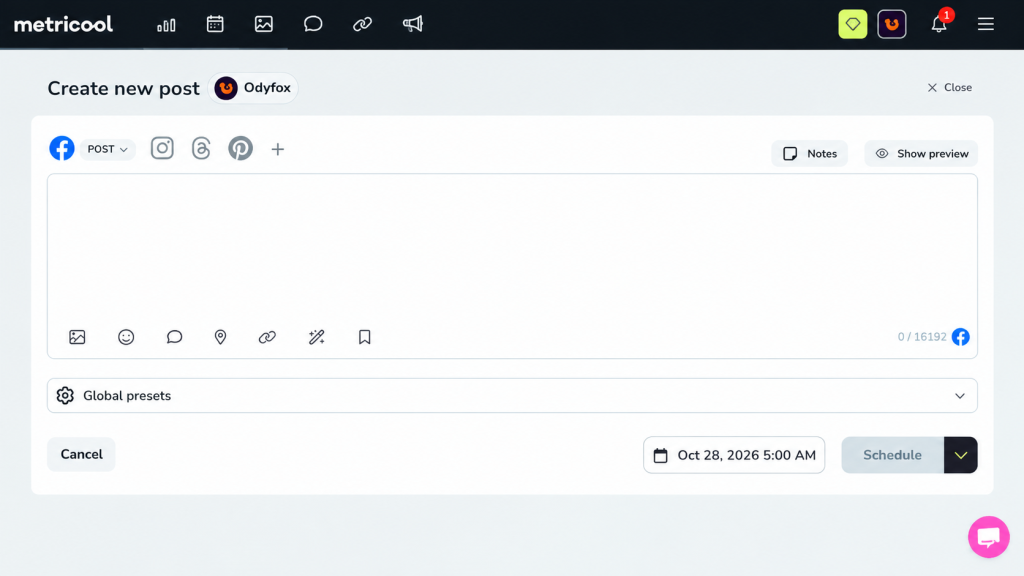
Ready to try the process yourself? Start with Metricool and follow along in your own Planning calendar.
When you select multiple networks, look for the option to edit the post separately for each network, if available.
You may be able to start with a common caption and then adjust the text, media, mentions, hashtags, or other supported settings for individual platforms.
For example, you might use a detailed caption on Facebook but a shorter version on another network. A video may also need different formatting depending on the destination.
Take a moment to review each selected network’s version before scheduling. This helps you avoid publishing an unsuitable caption or media format across every platform.
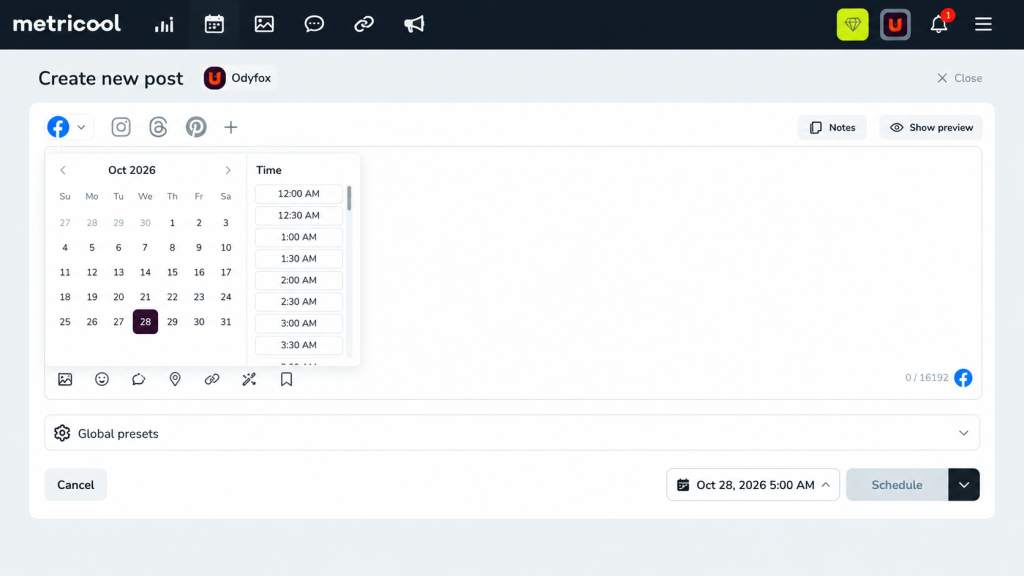
Once your content is ready, select the intended publishing date and time.
Check the time zone again before saving. If your calendar displays suggested best posting times for your audience, you can consider them when choosing a slot. Availability of these suggestions can depend on the connected profile and available data.
Next, preview the post where a preview is available. Review the text, image or video, links, and selected network. Metricool also offers an Instagram feed preview for reviewing how scheduled content may look together.
When everything looks correct, select the action that matches your goal:
Choose Schedule to set the post for future publication. Then return to Planning and confirm that the post appears on the intended date.
Scheduling a post does not always mean it will be published automatically.
Some Instagram and TikTok content must be completed manually because of the platforms’ publishing restrictions. Examples include Instagram Stories with links or interactive stickers, certain Reels using audio unavailable in Metricool’s library, and TikTok content that requires certain music, effects, or native features.
When manual publishing is required, Metricool can send a notification at the scheduled time. Open the notification and follow the instructions to finish publishing in the native social media app.
If you use manual publishing regularly, check your notification settings in Planning. Metricool recommends mobile notifications for a smoother workflow.
Always confirm whether automatic publishing is enabled for the post you are scheduling. The available options depend on the network and content type.
After saving, return to the Planning calendar and check the post’s status.
A post marked Pending is scheduled and waiting for its publishing time. A Draft has been saved but not scheduled. A post marked With errors needs attention; open its details to review the error message.
For Instagram and TikTok, a post marked Sent may mean Metricool has sent a notification for manual publishing. It does not necessarily mean the content has already appeared on the social network.
Before finishing, use this checklist:
Metricool’s current Free plan includes one Brand and up to 20 posts published per month. The count resets each month, and scheduled drafts do not count until they are published.
The Free plan also has restrictions on some connections and features. For example, LinkedIn is not available on Free, and X/Twitter requires a paid add-on.
Plan limits can change, so check the options shown in your account before building a large publishing schedule.
The basic workflow is straightforward: connect your accounts, open Planning, create a post, add text and media, customize it for each network, choose a date and time, preview the content, and schedule it.
The most important habit is to review the final post and confirm its status after saving. Social networks have different publishing rules, so some posts may require manual publication even when they have been scheduled in advance.
If you want to organize your content calendar and try this workflow yourself, explore Metricool here.
Affiliate disclosure: This article contains affiliate links. Odyfox may earn a commission from eligible sign-ups or purchases made through these links, at no additional cost to you.
More useful reads selected by topic and subject.

Managing multiple social media accounts can quickly become overwhelming. You open Facebook to publish a post, switch to Instagram to upload another,…
Read article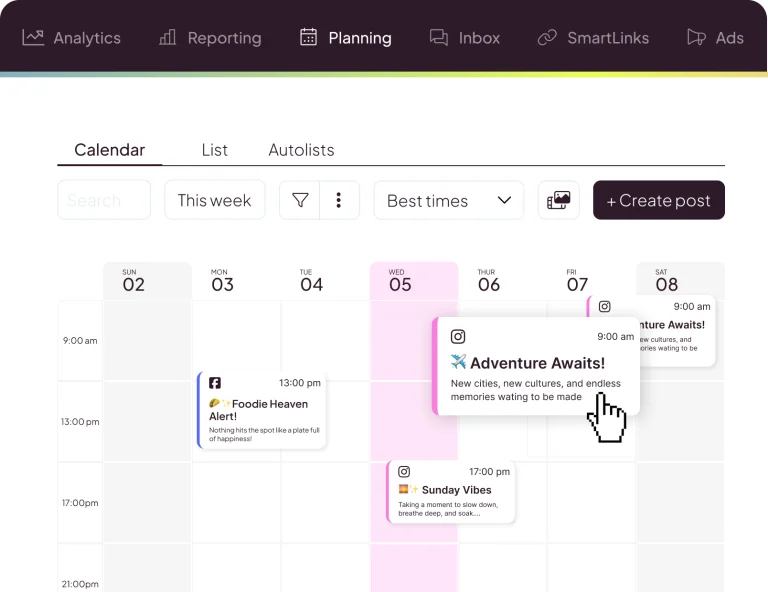
Looking for a simpler way to plan, publish, and analyze social media content? This complete guide explains how Metricool works, what it…
Read article
Are you tired of duct-taping five different software applications together just to run your online business? You pay for Mailchimp to send…
Read article